
Create and manage a deduplication rule
Match two order sources safely with filters, identifier checks, a live preview, and a primary source.
On this page
Use a rule when the same sale arrives from two connected accounts. Start with how duplicate matching works if you need to decide which source should supply the authoritative amount. You need two connected sources with imported orders before you can create a useful rule. The connection comparison helps you check which sources import orders.
Build and preview the rule
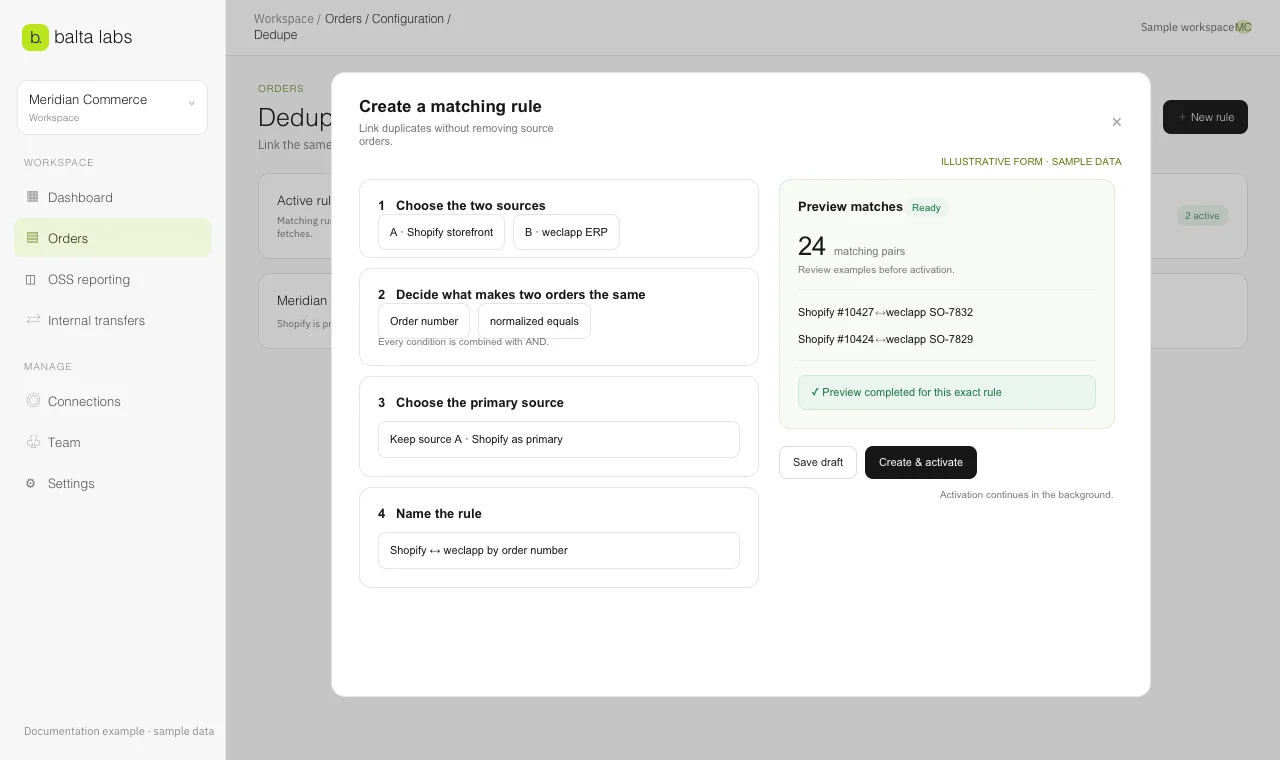
- Open Orders → Configuration → Dedupe and select New rule.
- Under Choose the two sources, select the exact connections for Source A and Source B. The button is unavailable until at least two connections and matching fields are available.
- Under Narrow each side, add optional filters when an account contains several marketplaces, channels, or order types. The chosen connection already limits each side. Filters on one side combine with AND.
- Under Decide what makes two orders the same, compare an order number or source order ID between A and B. An identifier comparison is required for preview. Add supporting conditions only when they make the match safer. All comparisons combine with AND; a date or amount check alone cannot replace the identifier.
- Under Choose the primary source, select the record that should supply the authoritative amount. Give the rule a readable name or keep the generated one.
- Review Live results. The preview updates after condition changes and shows the recent-window count, warnings, and example pairs. Check the identifiers and amounts in those pairs. It does not change orders or show the entire history.
- Select Save draft if you need more review. Select Create & activate only after the exact rule previews successfully. For an existing rule, use Save & activate.
For example, if one system stores SY19825 and another stores 19825, use the prefix/suffix comparison on the appropriate side. Preview the resulting pairs; do not assume all similar numbers belong together.
Check the result
Activation starts a full-history matching evaluation in the background. Later successful order fetches automatically queue active rules for the newly covered dates. On the rule card, check current matches and the evaluation status. Select View orders to inspect linked pairs; if the dialog says it is showing a recent preview, it has not loaded the full result set. Open an order in Orders → Dashboard to inspect its source records and primary badge.
The information menu beside New rule shows the latest scan. Scan recent 30 days is an optional manual recheck of stored recent orders, not a prerequisite for normal imports or a full-history scan.
Change or disable a rule
Use Edit to adjust conditions or the primary source, then review the fresh preview before activation. Pause or Archive disables a rule; its existing matches are removed in the background. The original source orders remain. Wait for processing, then check the order view and any affected OSS report or export before relying on totals. An inactive rule can be activated again after a successful preview.