
Connect Allegro
Authorize read-only access to an Allegro seller account.
On this page
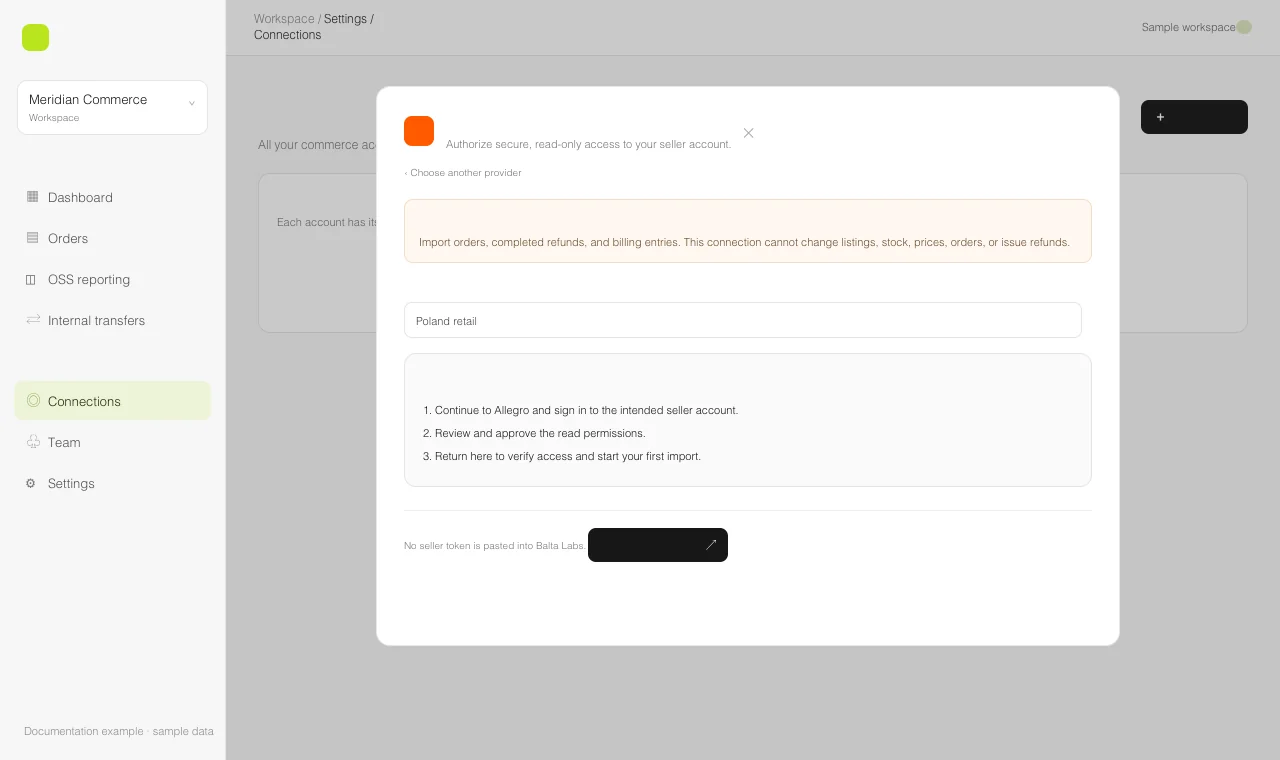
Allegro uses an authorization flow. You do not paste a seller token into Balta Labs. The connection imports marketplace orders, completed refunds, and billing entries with read-only access.
Allegro’s OAuth guide explains the seller authorization flow. Balta Labs starts that flow for you from the connection form.
Authorize the account
- Open Settings → Connections → Add account → Allegro in Balta Labs.
- Optionally enter an Account name that distinguishes this seller from other connected accounts.
- Select Continue to Allegro and sign in with the intended seller account.
- Review the requested read permissions and approve the connection on Allegro.
- Return to Balta Labs. The new account should appear in Settings → Connections.
- Select Test, then open Orders → Configuration → Sources to start and monitor the first import.
If the authorization window reports that application setup is needed, ask your workspace administrator to configure the Allegro application’s client ID, secret, and callback URL on the backend. The seller should not enter those application credentials in the account form.
Reconnect or add another seller
Use Manage → Reconnect account when the existing seller needs renewed authorization. Reconnect with the same Allegro account shown in the form. To connect a different seller, use Add account instead.
Allegro provides a limited order history window. Missing tax or fulfillment-origin fields are flagged during OSS review. Review these gaps before using an export for reporting.