
Export OSS data
Choose a built-in layout, preview its checks, and download a reproducible file.
On this page
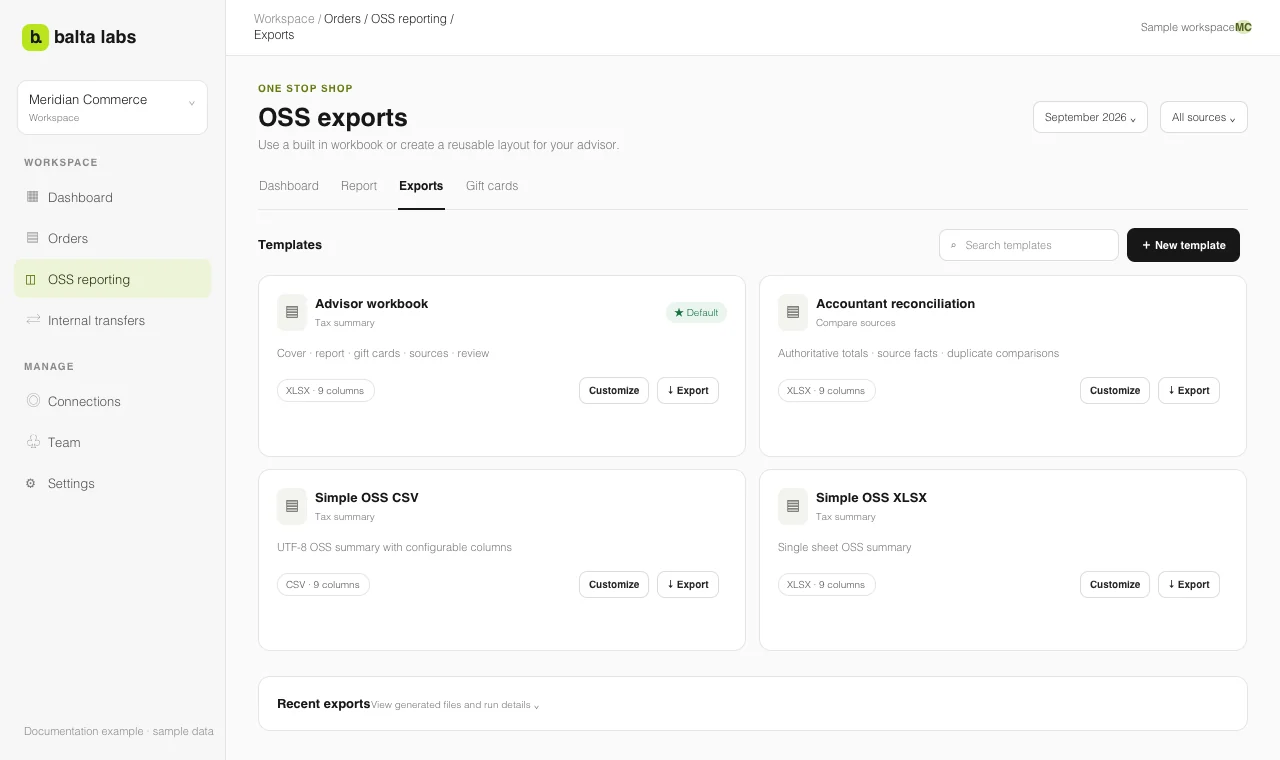
Export Studio turns the selected period and source scope into a file. Start with a built-in template, read its preview and checks, and download the completed run. The export uses the selected data basis; different bases answer different questions.
Choose a layout
Open Orders → OSS → Exports. The built-in OSS templates are:
| Template | Use it for |
|---|---|
| Advisor workbook | A broad review with report, shipping routes, gift cards, sources, and review sheets. This is the built-in default. |
| Accountant reconciliation workbook | Comparing authoritative totals with original source facts and duplicate differences. |
| Simple OSS CSV | A UTF-8 tax summary in a text file. |
| Simple OSS XLSX | A single-sheet tax summary in Excel format. |
The CountX warehouse transfers template also appears in the export catalog, but it serves the internal transfer workflow.
Preview and download
- Check the date range and source shown above the templates.
- Open a template with Edit & preview. Review the selected data, columns, filters, sorting, and file format.
- Read the preview checks. Fix any error before exporting, and investigate review notices such as unknown origin or overlapping sources.
- Select Apply to preview after changing settings. The preview is a bounded sample, so inspect totals and checks as well as visible rows.
- Select Export now. The completed run downloads a file with all matching rows. Recent exports keeps its run details for audit; the generated file is available for download for 24 hours.
You can also select Export default from the report when the workspace default layout is the right one.
Understand the data bases
- Tax summary combines authoritative order amounts into reporting totals.
- Individual orders provides one row per matched order with its number.
- All source events lists original sales and refund facts. It includes duplicates and must not be summed as if it were the authoritative order total.
- Compare sources places matched sources side by side to investigate differences.
- Warehouse transfers contains stock movements, not sales. Use it with a transfer-specific template.
Workspace owners can copy a built-in template, change columns or filters, save versions, and set a custom default. Changing the data basis can reset columns, filters, and sorting. Preview the result again before downloading. See order reconciliation for why authoritative and source-event totals can differ.