
Connect weclapp
Add a weclapp account URL and API token for ERP data.
On this page
A weclapp connection supplies ERP orders, article data, warehouses, and supported operational records. It can help explain an order’s costs and the movement of stock between locations.
Before you begin
Have your weclapp account URL and an API token with access to the records you plan to import. Verify token creation and permissions in your current weclapp administration interface; its exact screens can change.
Add the account
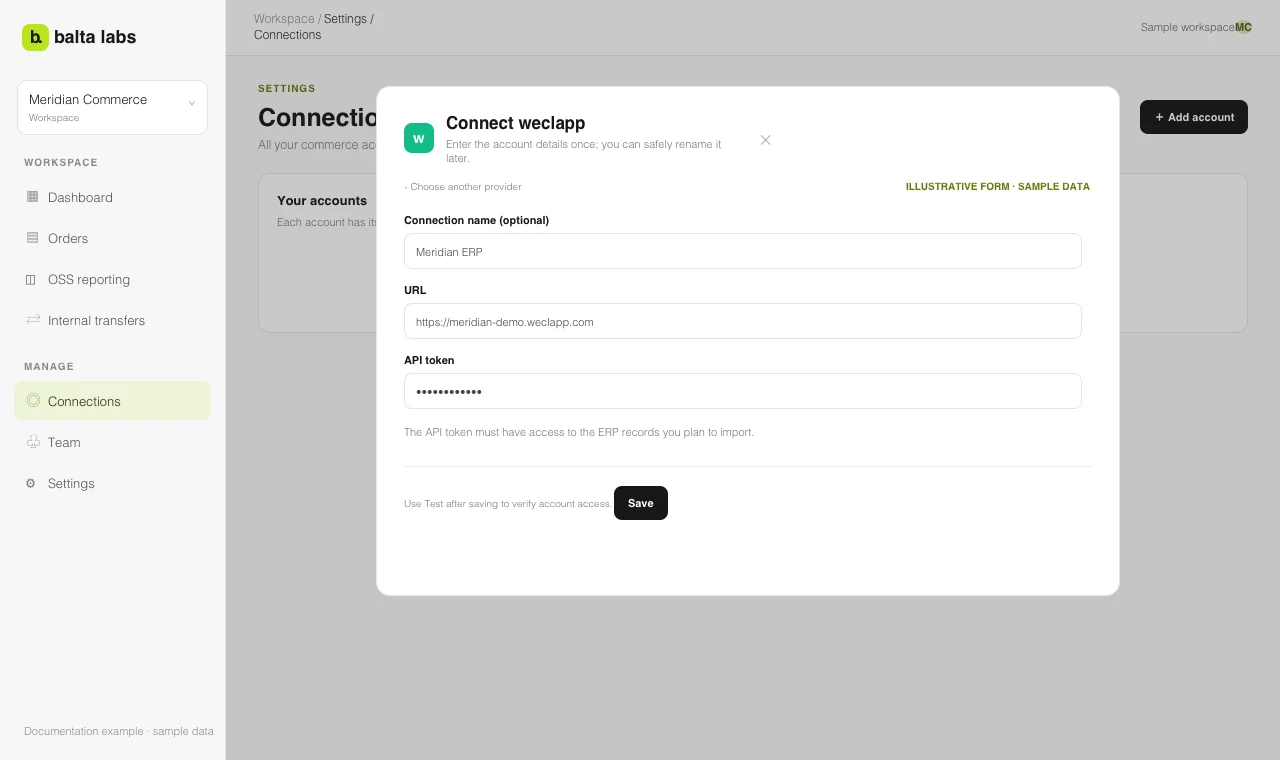
- Open Settings → Connections → Add account → weclapp in Balta Labs.
- Optionally enter a Connection name. Without one, Balta Labs uses the account URL as its label.
- Enter the account URL, for example
https://example.weclapp.com. - Enter the API token and save.
- Select Test on the connection card.
- Open Orders → Configuration → Sources and start the relevant imports. Watch the job status for errors.
If a test fails, check the URL, token, and its access in weclapp. Use Manage to replace the token; leaving the token field blank during a normal edit retains the current one.
When the same sale appears in an ERP and a commerce source, Balta Labs can link the records. Review the matching rules and source records before comparing totals. For stock movement data, continue with Internal inventory transfers.