
Connect a source account
Choose a provider, verify access, and monitor the first import.
On this page
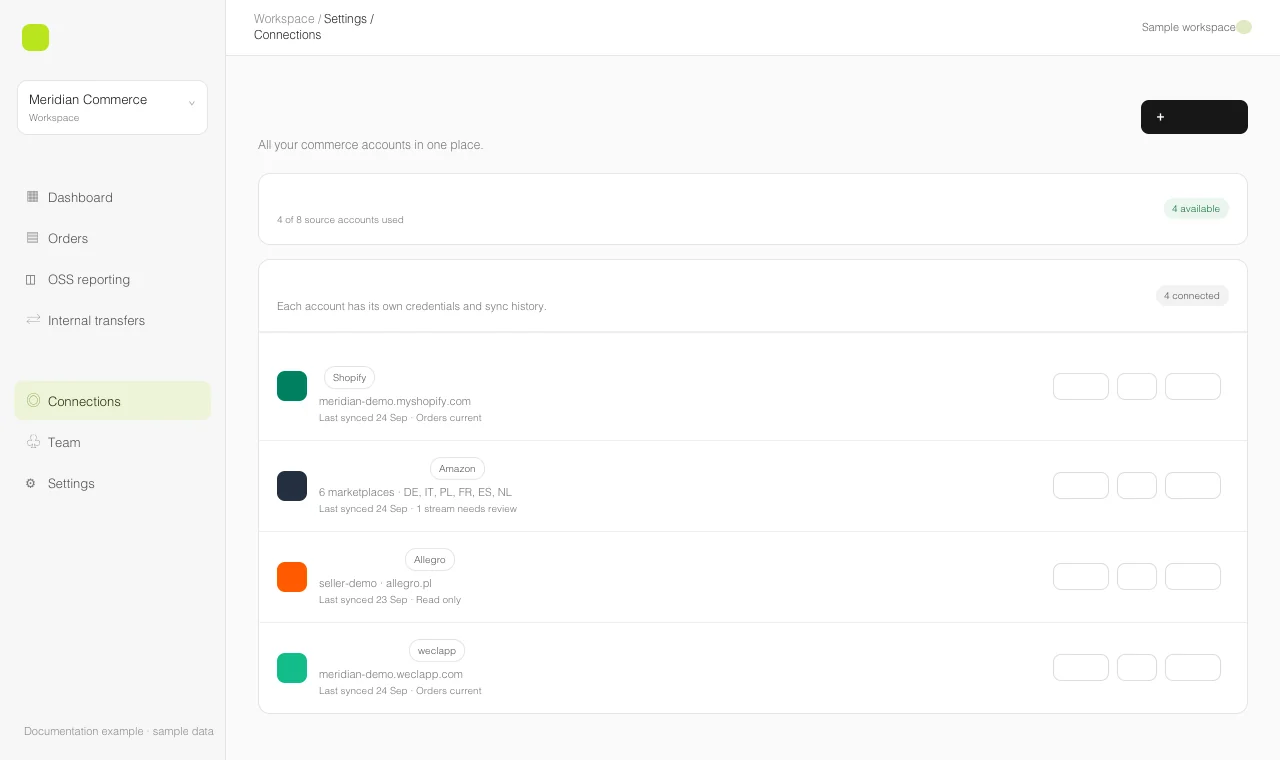
A connection links one store, seller account, or ERP account to your Balta Labs workspace. You can add several accounts from the same provider. Give each one a clear name so you can recognize it in filters and exports.
| Provider | Records used in Balta Labs | Connection method |
|---|---|---|
| Shopify | Store orders, refunds, payments, fulfillment details, and supported transfers | Store domain and app credentials |
| Amazon | Seller orders, financial transactions, FBA shipments, and supported transfers | SP-API credentials and selected marketplaces |
| Allegro | Marketplace orders, completed refunds, and billing entries | Seller authorization |
| bol | Marketplace orders, shipments, returns, and settlement evidence | Seller Retailer API credentials |
| weclapp | ERP orders, articles, warehouses, and supported transfers | Account URL and API token |
For a quick view of what each connection can contribute to orders, stock, and VAT review, see What each connection supports.
Add an account
- In Balta Labs, choose the workspace that should own the connection.
- Open Settings → Connections and select Add account.
- Choose the provider. If another account already uses that provider, choose it again; existing connections remain separate.
- Follow the guide for your provider in the table above for the fields or authorization flow.
- After the account appears as connected, select Test. Use Explore to inspect the available source data.
- Open Orders → Configuration → Sources. Start the first import and watch the source status. A connected account alone does not mean that its historical orders have finished importing.
Check the result
The connection card shows whether the account is connected or needs reconnection. The Sources area shows import jobs, coverage, and errors. If an import fails, read its latest error before retrying. For Amazon, check each selected marketplace separately.
Imported orders appear in Orders → Dashboard. The OSS report and internal transfers use the same underlying connections, subject to provider support and available fields.
Manage credentials safely
Use Manage to rename a connection or replace credentials. When you edit an existing credential-based connection, leave a secret field blank to keep its current value. Use Remove only when you intend to disconnect that account from the workspace.